
Use the AI Tutor and Practice Questions
Ask lesson-grounded questions, use suggested prompts, switch tutor layouts, practice, and report an answer that needs review.
In this guide2 sections and article resources
Article resources
Choose Open tutor on a community lesson. The tutor can stay beside the lesson, dock to the other side, expand, or open as a full-page chat.
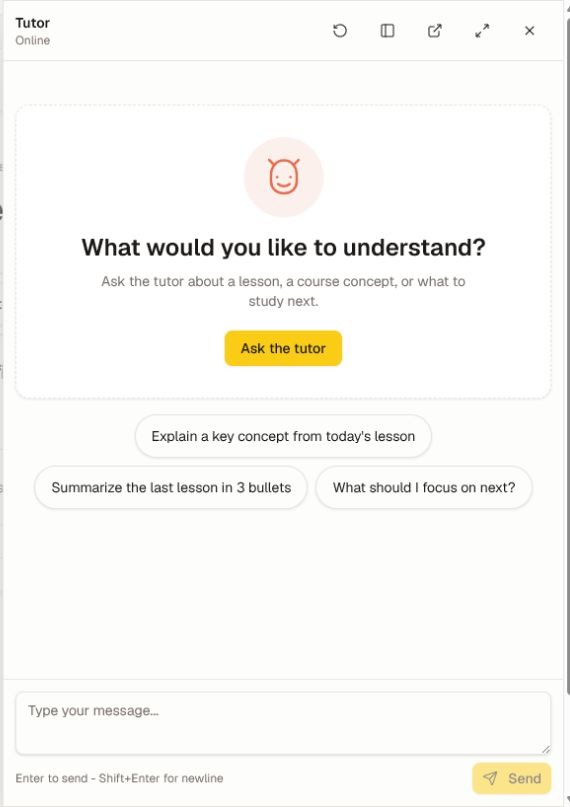
Ask a useful question
- Name the lesson or concept you are working on.
- Choose a suggestion—such as Explain a key concept from today's lesson, Summarize the last lesson in 3 bullets, or What should I focus on next?—or type your own question.
- Compare important facts in the answer with the published course material.
- Ask a follow-up that identifies the part you still do not understand.
Ask the teacher inside a lesson can prefill the full-page tutor with that lesson's context. Use New chat when you want to start a separate topic. The dock controls let you move, expand, close, or open the conversation on the full page.
Practice and feedback
When practice is available, ask for a practice round and answer one dealt question at a time. Practice prompts help you study; they do not replace the creator's graded quiz.
After the tutor answers, use the helpful or not-helpful feedback action. Choose the available report or creator-feedback option when an answer is unsafe, missing, or inconsistent with the course, and identify the course and lesson.
The tutor can use approved community, course, conversation, and memory context. Do not send passwords, payment details, private messages, authentication codes, or another member's personal information. Availability depends on the community's plan, settings, persona access, and reviewed learning content.
Was this helpful?
Your response helps us improve this guide.