Complete Lessons and Use Lesson Resources
Move through a course, open supporting files, ask the teacher, and record lesson completion accurately.
In this guide1 section and article resources
Article resources
Open a lesson from the course outline. The left side shows the course, chapter, current item, and progress; the main area contains the lesson and its actions.
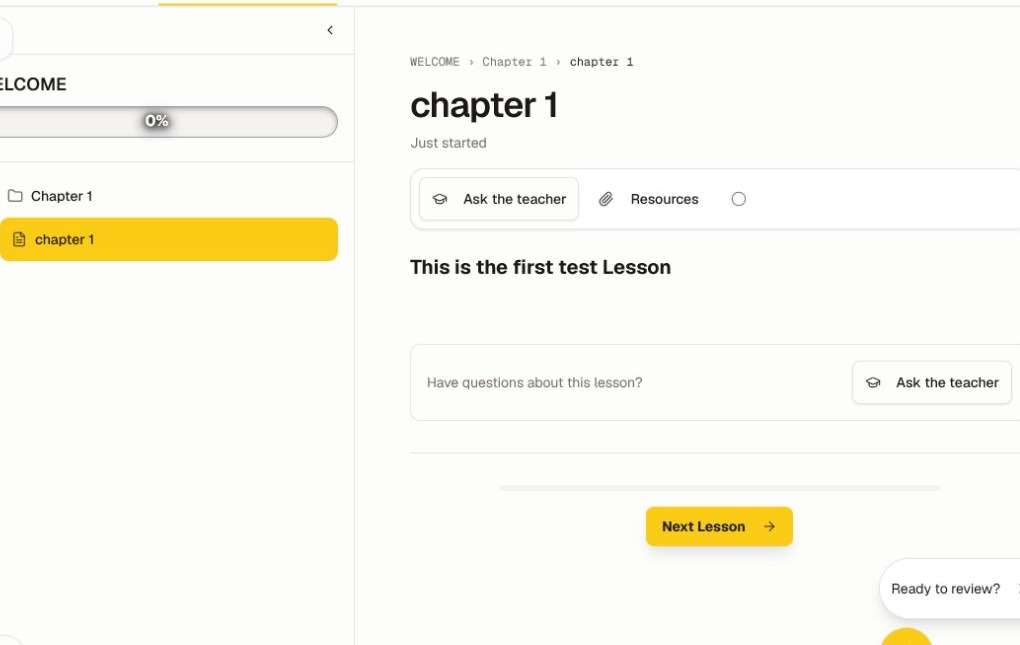
- Read, watch, or listen to the lesson content.
- Choose Resources to open any supporting files or links.
- Choose Ask the teacher when you want to send the lesson context to the available course assistant.
- Finish any download, assignment, video, or quiz the creator requires.
- Choose Mark lesson as complete. Confirm that the course progress changes.
- Choose Next Lesson to continue, or use the course outline to open another available item.
Keep completion accurate
Do not mark a lesson complete before finishing its required work. A course can use lesson completion, a passing quiz, prerequisites, a cohort schedule, or another creator-defined rule to unlock the next item.
If Resources is empty, the lesson does not currently have supporting items. If a file will not open, allow the browser's download or pop-up action, try a current browser, and report the exact resource name to the community admin.
If the completion control changes but My Learning does not, refresh once and reopen the lesson before repeating the action. See Track Learning Progress and Upcoming Work for the full recovery checklist.
Was this helpful?
Your response helps us improve this guide.