Earn, Download, and Share a Certificate
Confirm course completion, open an earned credential, download it, and share its verification link safely.
In this guide2 sections and article resources
Article resources
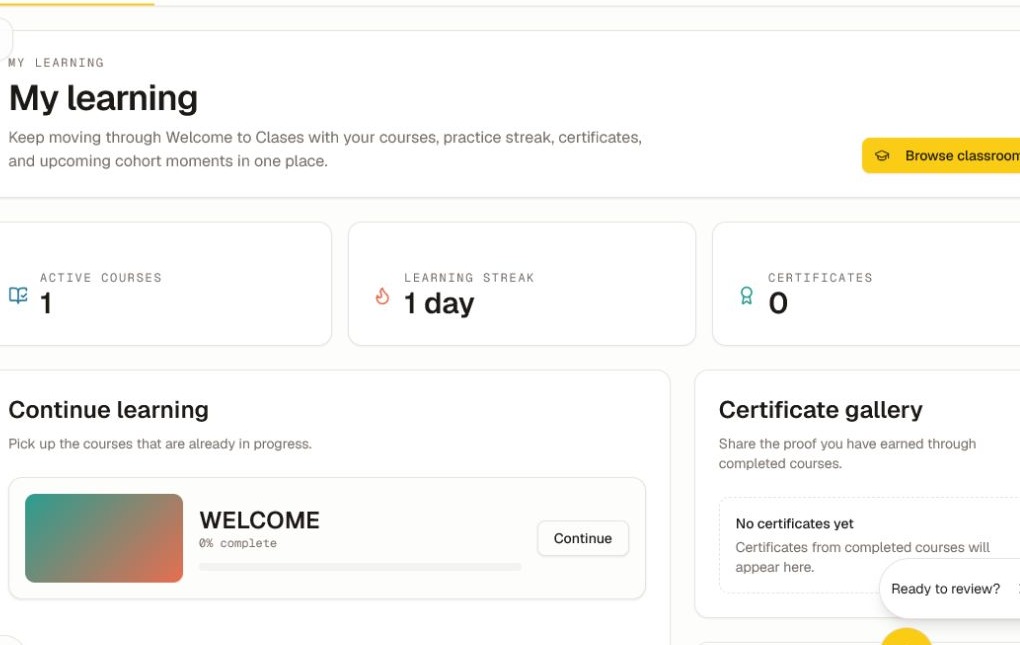
Open My Learning in the community and check the Certificate gallery after completing a course.
Earn the credential
- Complete every required lesson and assignment.
- Submit each required quiz and meet its passing score.
- Check that the course progress is complete in My Learning.
- Wait for the creator's certificate rule to run. Some communities issue certificates immediately; others review completion first.
The Certificate gallery shows an empty state when you have not earned a credential in that community or certificate issuance is not enabled.
Review, download, and verify
- Open the earned certificate from the gallery or course action.
- Verify the displayed name, course, issuer, issue date, and current status.
- Choose Download when you need a copy of the credential.
- Use the verification link when a school, employer, or professional network needs to confirm it.
The verification page can expose a full name, initials, or another creator-selected identity format. Review what is visible before posting the link publicly. A revoked certificate is invalid even if an older downloaded copy still exists.
If the certificate is missing, refresh My Learning after confirming the final completion rule. Then send the community admin the course name and the exact lesson or quiz that is not recording correctly. Never send a password, reset link, or private account code.
Was this helpful?
Your response helps us improve this guide.