Review Direct Messages and AI Conversation History
Use the Chat menu, open peer threads, review a community Inbox, and continue an AI conversation from the full-page tutor.
In this guide3 sections and article resources
Article resources
Clases has related but distinct places for conversation history.
Peer messages in Chat
Use the global Chat button to:
- switch between Unread and All;
- search for a member;
- open an existing direct-message thread; and
- mark visible conversations as read.
If the menu says No chats yet, start from a community's Members directory and choose Message on a profile. Messaging must be enabled for both the community and your account.
Community Inbox
When a community exposes Inbox, it can combine your peer threads and your AI conversation history in one list. Only conversations connected to your signed-in account appear.
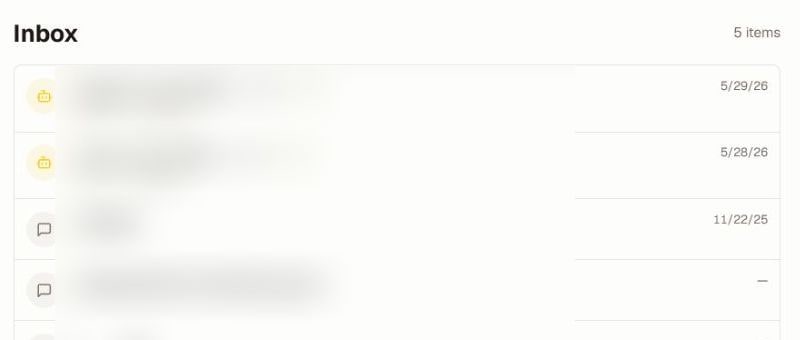
Select a peer item to open its private thread. Select an AI item to review the recorded conversation. An AI history item can be read-only in Inbox; choose Open full page or go to the community's Agent Chat to continue with the tutor.
Starting New chat creates a separate AI conversation for a new topic. It does not delete the older history.
Privacy and missing conversations
Do not copy private messages or AI memory into a community post. Use Settings → Notifications → Chat to control which communities may message you and Settings → Privacy to review blocks.
If a conversation is missing, confirm the community and account, check both Unread and All, and search by the participant or conversation title. AI and peer lists can update independently, so an empty Chat popover does not necessarily mean the community Inbox has no AI history.
Was this helpful?
Your response helps us improve this guide.