
Use My Groups and Switch Communities
Return to your dashboard, open a membership, and organize the communities you use most.
In this guide2 sections and article resources
Article resources
My Groups is the dashboard for communities connected to your account. Each card shows the community name, access context, member count, and a View Community action.
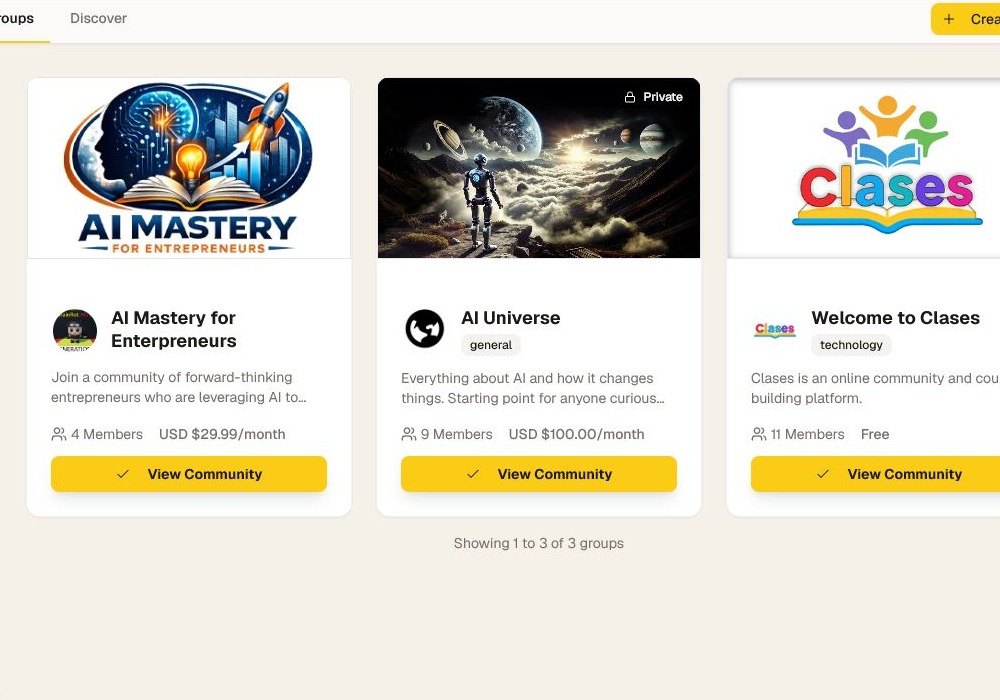
Open or switch communities
- Choose My Groups in the global navigation whenever you want the full dashboard.
- Select View Community on a card to enter that community.
- On signed-in community pages, expand Your communities at the left edge to switch directly between memberships.
- Choose Discover when you want to find a community that is not already on the dashboard.
The active community controls the tabs, courses, events, members, points, and AI tutor you see. Check the community name in the page header before posting, completing a lesson, or asking the tutor a question.
Reorder or hide cards
Open Settings → Communities. Drag memberships into the order you want, or hide communities you do not need in the switcher. Reordering or hiding a card does not cancel, leave, or change access to the community.
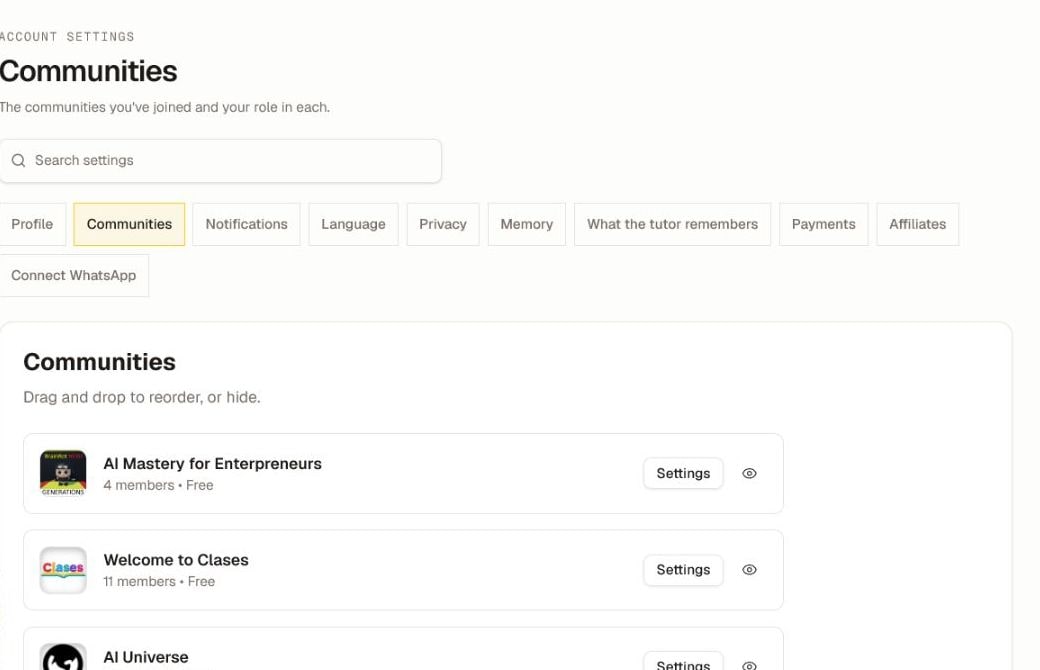
If a community disappears from both My Groups and Settings, confirm the signed-in email. A canceled plan, expired access, denied request, or removal by a community admin can also end access; only that community's team can restore it.
Was this helpful?
Your response helps us improve this guide.