
Publish a Course, Landing Page, and SEO Metadata
Move a reviewed course out of draft, enable its public landing page, and configure search and social metadata.
In this guide3 sections and article resources
Article resources
Open the course editor after lessons, quizzes, resources, access, pricing, and the member preview have passed review. Publishing and public landing visibility are separate controls.
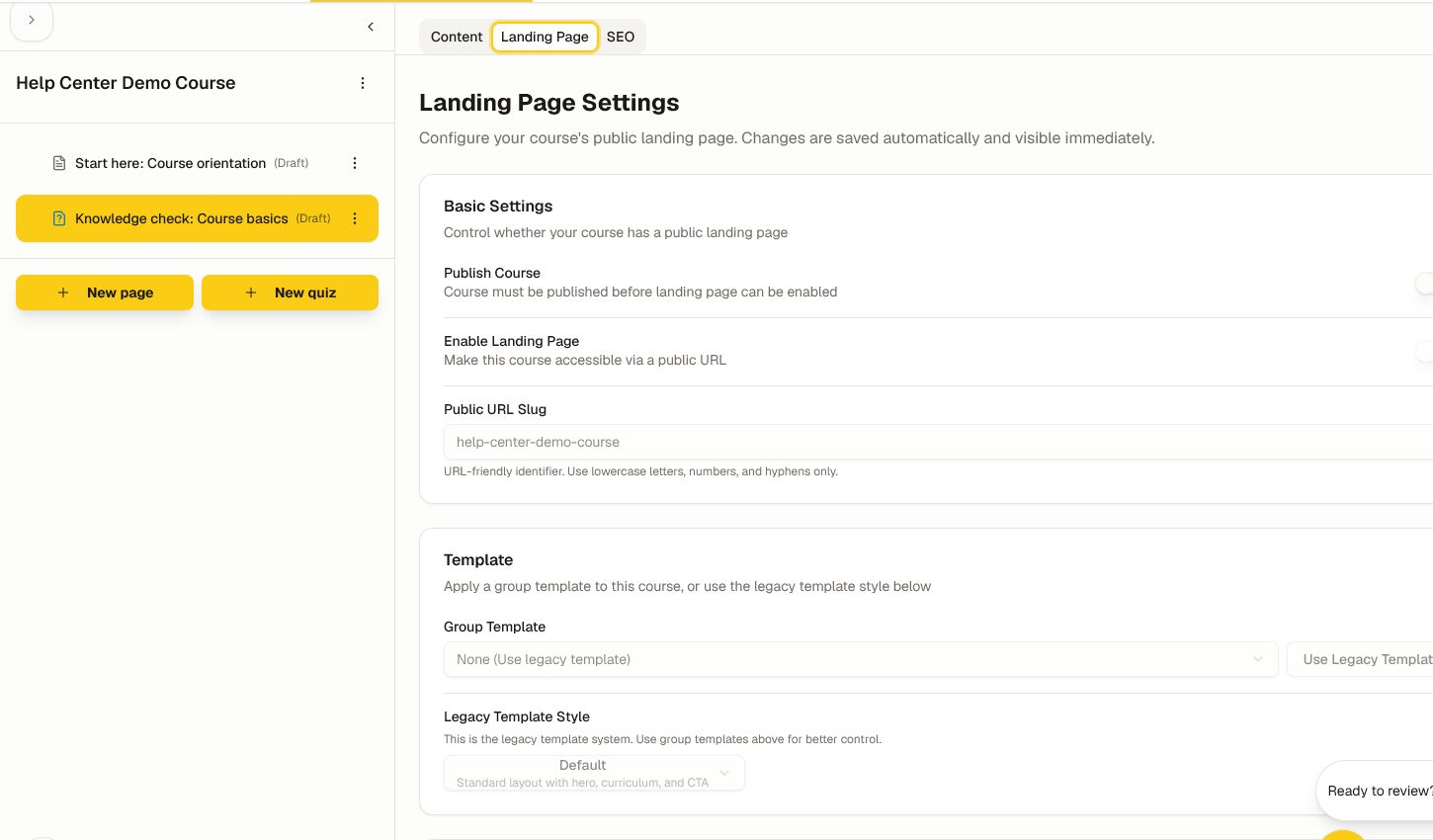
Publish the course and landing page
- Open Landing Page.
- Turn on Publish Course only when the intended revision is approved.
- Enable the public landing page when the offer should be discoverable outside the classroom.
- Review the public slug, selected template, and visible sections such as Hero, Curriculum, and Call to Action.
- Confirm the CTA leads to the correct purchase, request, or enrollment path.
- Save and open the public URL signed out.
Configure SEO and social metadata
Open SEO and complete the relevant tabs: Basic SEO, Social Media, Advanced, Structured Data, Localization, and Preview. Write a unique meta title and a useful description that accurately reflects the course. Preview social and search output before saving.
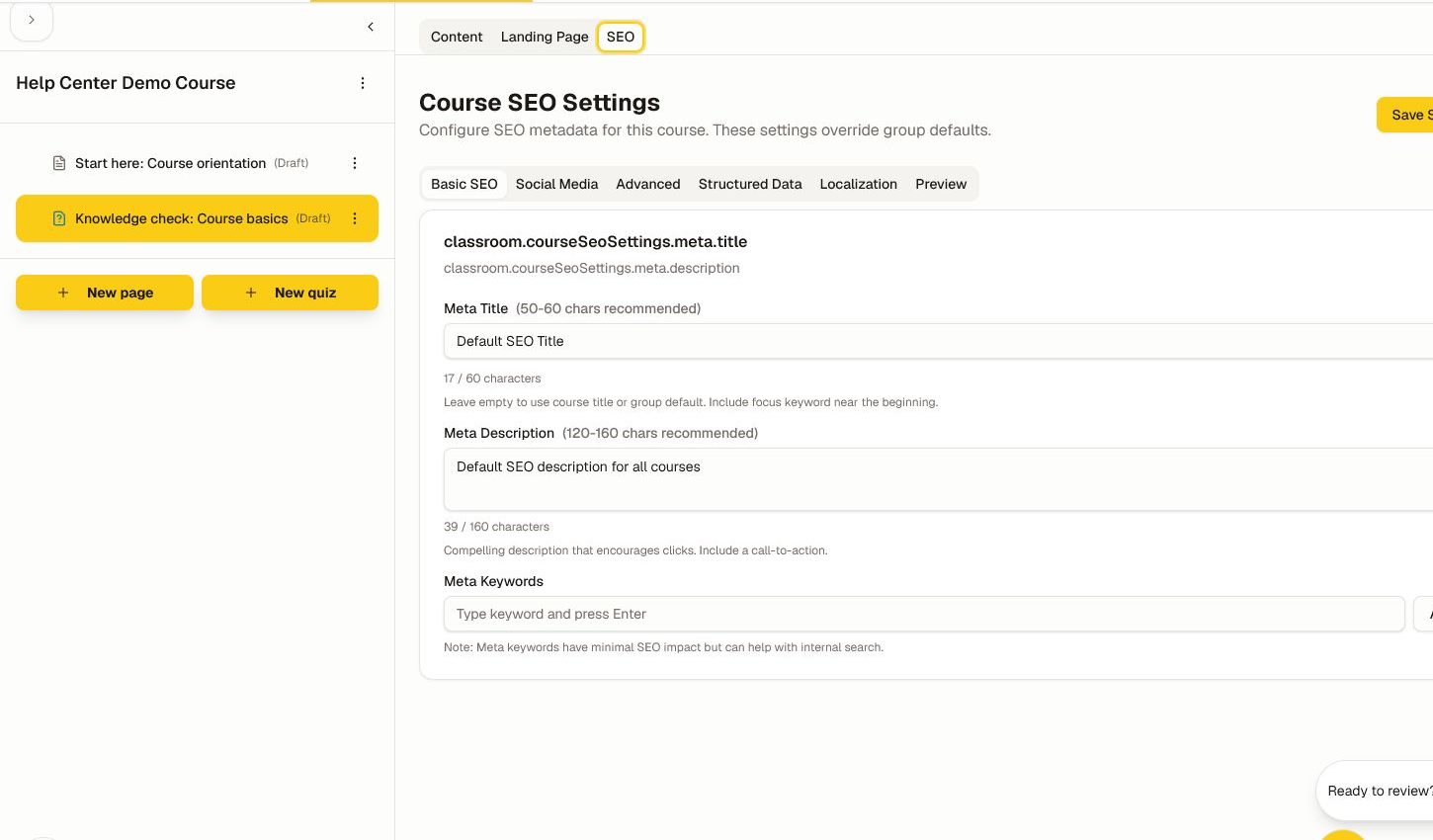
Use one canonical URL, truthful claims, useful image alternatives, and localized metadata for each published locale. Do not index a private offer or expose draft lesson text in metadata.
Verify and roll back
Test the signed-out landing page, member course card, entitled learner, non-entitled learner, mobile layout, checkout/request path, and social preview. Publishing makes content available according to access rules; it does not grant every member access.
If the wrong revision is live, unpublish or use the governed revision/rollback action available to the course. Preserve the audit trail and check existing enrollments before moving learners between revisions.
Was this helpful?
Your response helps us improve this guide.