
AdminsLessonsResourcesEditor
Create Lessons and Add Resources
Add a draft page to a course, write lesson content, attach supporting files, and verify the learner view.
2 min readContent management
In this guide3 sections and article resources
Article resources
Open a draft course in the Classroom authoring workspace.
Create the lesson
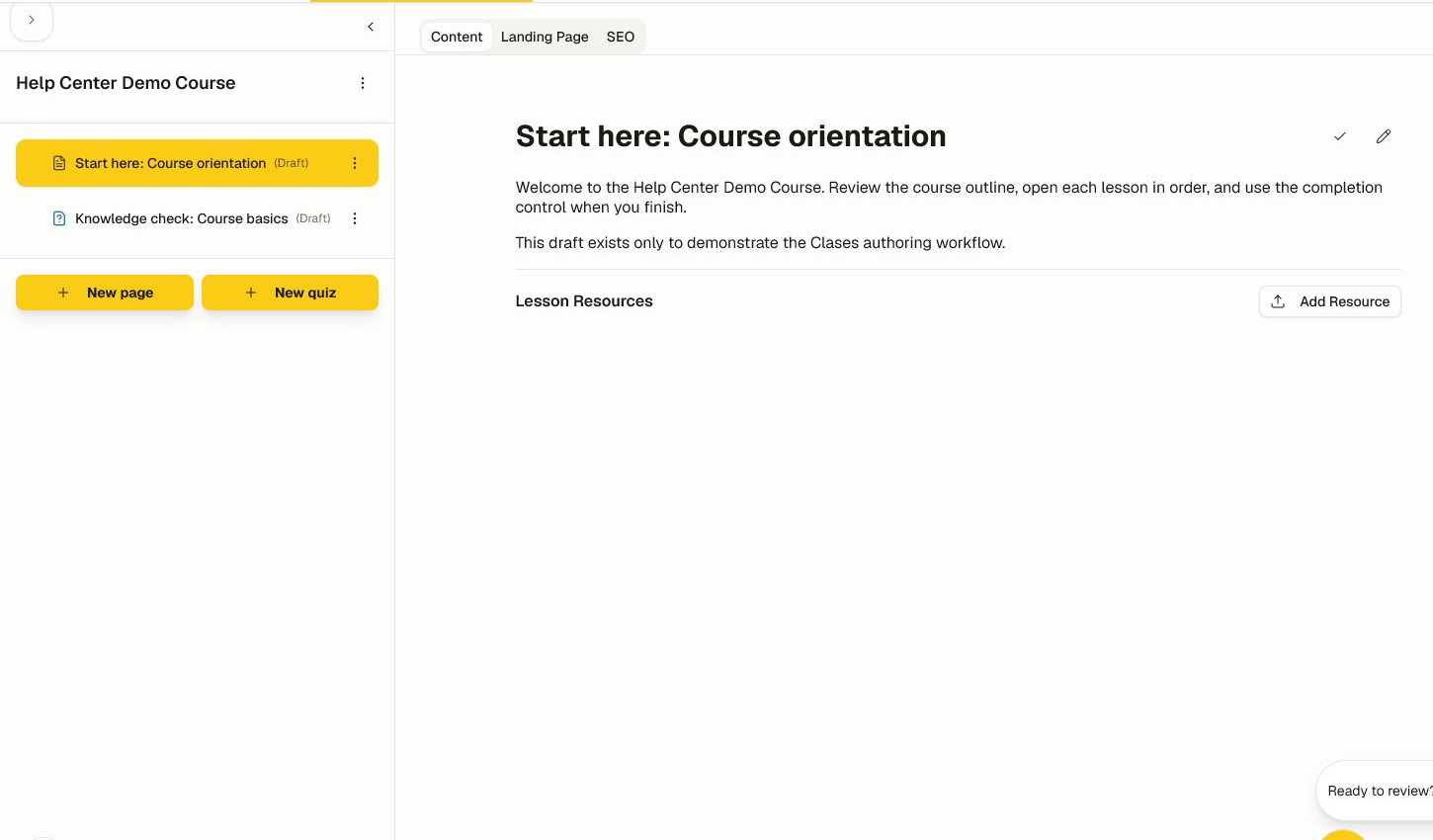
- Choose New page.
- Give the lesson a task-oriented title.
- Use the editor to add the outcome, explanation, worked example, learner action, and completion cue.
- Use headings in order, descriptive links, meaningful image alternatives, and captions or transcripts.
- Save and keep the item in draft while reviewing it.
- Reorder the lesson only after checking prerequisites and references from other lessons.
Add supporting resources
- Choose Add Resource to attach a supported file or link.
- Give the resource a recognizable label and explain when to use it.
- Confirm the file is the approved revision and does not expose authoring notes or tracked changes.
Verify the learner view
Preview as a member and test the lesson on mobile and desktop. Verify downloads, external links, video playback, captions, keyboard access, completion, progress, and the next lesson. A resource must not contain secrets, private member data, inaccessible scans, or media without publication rights.
If the member sees an older version, confirm you saved the intended lesson, published the correct course revision, and did not edit a different locale or draft.
Was this helpful?
Your response helps us improve this guide.
Related articles
Create and Manage CoursesCreate a draft course, review access and status, and open the authoring workspace.Read article Create, Preview, and Review QuizzesAdd a draft quiz, build questions and answers, preview the learner experience, and use analytics after launch.Read article Publish a Course, Landing Page, and SEO MetadataMove a reviewed course out of draft, enable its public landing page, and configure search and social metadata.