
Use the Creator Console Overview and Reports
Read community health, member, revenue, learning, retention, cohort, and certificate signals from one workspace.
In this guide3 sections and article resources
Article resources
Open Creator console from a community where you are an owner or admin. The console is an operations workspace; members do not see it.
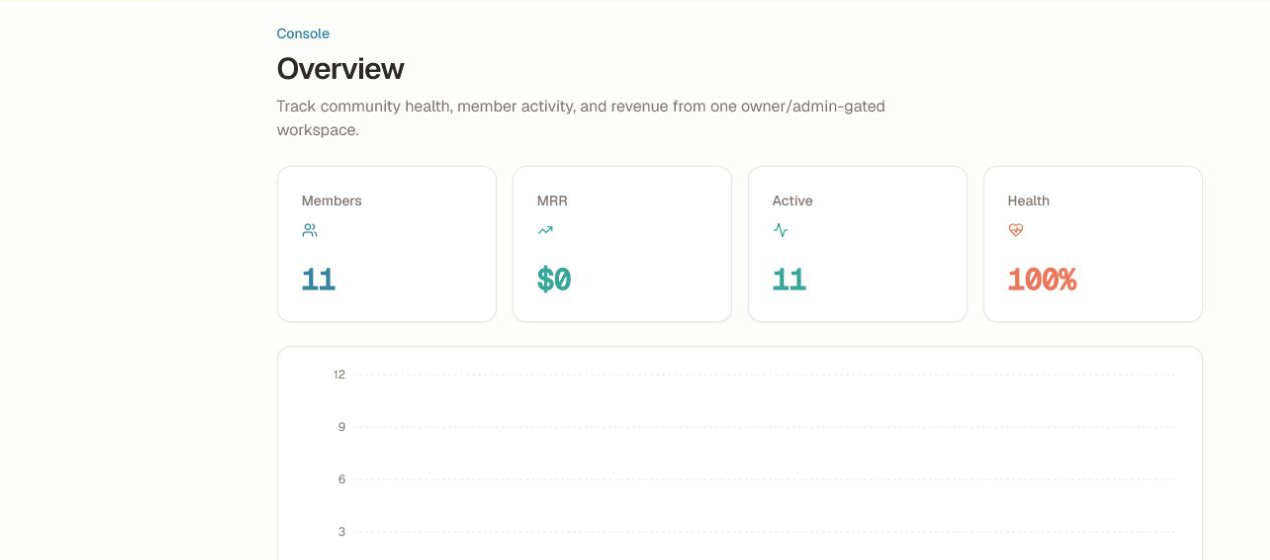
Choose the right workspace
The navigation groups the owner journeys:
- Overview — directional member, revenue, activity, and health signals
- Members — roster, roles, joined dates, and learning context
- Retention — health, drafts, win-back stages, autonomy, and send limits
- Memory — the governed knowledge used by community assistants
- Courses — course status, content freshness, and review actions
- Cohorts — schedules, pace, outcomes, and approved recaps
- Certificates — issued, active, and pending credentials
- Monetization — recurring revenue, conversion, trials, and access offers
- Settings — community, monetization, growth, AI, and advanced controls
Investigate a signal
- Note the card, value, and time range that prompted the review.
- Open the report that owns the underlying records.
- Check whether the report is empty, still loading, filtered, or feature-gated.
- Use Refresh when the page provides it.
- Compare the result with a second operational source before changing access, content, or billing.
The cards are not accounting statements or a complete audit log. MRR is directional; reconcile money in Monetization, the payment provider, and payout records. Health is a prioritization signal; open the member or retention report before outreach.
Share and troubleshoot safely
Before sharing a screenshot, crop out the member table, names, avatars, email addresses, payment details, tokens, and conversation previews. If a number appears wrong, record the route, role, filter, time, expected value, and actual value. Do not “fix” a dashboard discrepancy by changing unrelated settings.
Was this helpful?
Your response helps us improve this guide.